

Appearance
Sessions and attendance
Every time a group meets, that meeting is a session. You create a session for each gathering, then mark attendance for it. This is the day-to-day rhythm of running a group — simple enough to do on a tablet in the room.
Running a drop-in group?
An open, walk-in group works differently: people are checked in one at a time at the door and there's no absent mark. → Take attendance at a drop-in group
Create a session
- Open the group and go to the Sessions tab.
- Select Add session.
- Pick the Scheduled date and select Add session.
Each session is listed with its date and an attendance count. You can sort sessions newest- or oldest-first.
Take attendance
- On the Sessions tab, select Take attendance (or the count) next to the session.
- You land on the Attendance tab with that session chosen. Each participant has three choices: Present, Absent, or Excused.
- Mark each person — or use Mark all present / Mark all absent to start fast and adjust from there.
- Select Save.
Don't lose your marks
If you leave the Attendance tab with marks you haven't saved, the portal reminds you first — select Save before moving on.
Saving attendance moves each participant's progress bar on the roster. Only Present counts toward it, so an excused absence records the reason without advancing the participant.
Who shows up in the list
A session's attendance list includes the participants who were active and enrolled on or before that session's date. Someone enrolled later won't appear for an earlier meeting — which keeps your past records accurate.
See every session at once
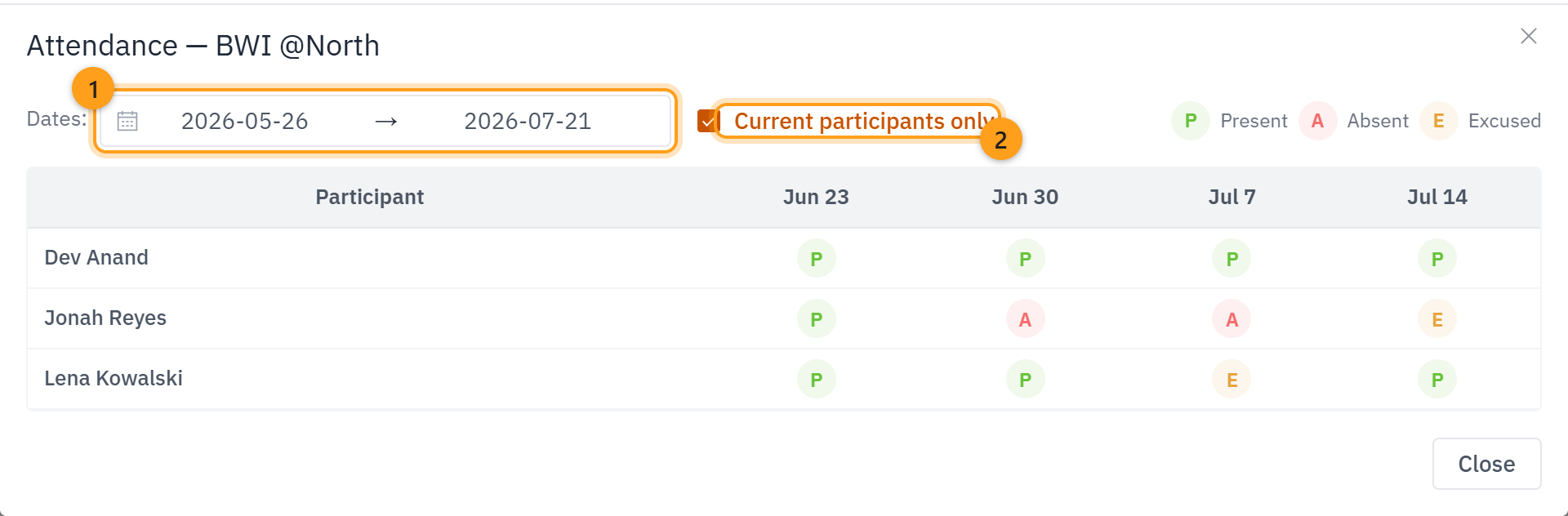
Attendance marking works one session at a time. View attendance, in the group header, shows you the whole run: a row per participant, a column per session, a mark in every cell. P for present, A for absent, E for excused.
The roster gives you a total. The grid gives you the pattern, so you can see whether someone missed two scattered weeks or the last four in a row.
Looking at one person? Open their case and expand the group's row on the Groups tab for their last 8 weeks — see The case tabs.
- Dates narrows the grid. Shortcuts cover the last 4, 8 or 12 weeks, or all time, and it opens on the last 8 weeks.
- Current participants only hides people who have completed or withdrawn.
A row of A's often means an empty checkbox
Saving a session records a mark for everyone enrolled by that date, not only the people you checked. Anyone left unchecked is saved as absent. Someone marked Completed stops being counted, so sessions after that show a dash.
Take attendance at a drop-in group
A drop-in group has no list of expected people, so there's nothing to mark present or absent. Instead, you check people in as they walk through the door.
- Open the group and go to the Attendance tab.
- If there's no session for today yet, select Start today's session.
- Start typing a name in the Search the registry… box. Results appear after two letters.
- Select Check in next to the right person.
They move to the Checked in this session list. Checked in the wrong person? Select Undo on their row.
There's no Save button. Each check-in is saved the moment you select it.
Someone new
If the person isn't in the registry yet, select Register. If the program has more than one registry, you'll pick one first. The Add New Case window opens on its own — fill it in, then save with Add Case & return. You land back on the same session, ready to check them in.
Not everyone sees Register
Registering someone adds a new case, which is intake work. If your role only checks people in, you won't see the button. In this case, take the person's information. Someone who can register people can add them later.
When someone doesn't want to be named
They come back, but won't give a name
Some people are happy to be counted every week — they just don't want to be named. Register them anyway, and leave the name out.
- Select Register. The Add New Case window opens on its own — select the Create New … button at the bottom of it. It ends with the kind of person your workflow tracks — Student, Person and so on.
- Check Declined a name. The first and last name boxes disappear.
- Fill in whatever else they're willing to share. The Demographics tab takes gender, date of birth, age band, and race or ethnicity — none of it needs a name.
- Select Save changes, then finish the case with Add Case & return.
The portal gives them a label like Participant #0417. It's theirs alone and it's never given to anyone else, so you can check them in week after week and their history builds up like anyone else's.
If they tell you their name later, open their record, uncheck Declined a name, and type it in. Their history stays.
You just need a headcount
Some people only pass through, and all you need is to count them. The portal keeps a number for them, not a record.
First, decide which kind of count fits:
- Anonymous — you don't know whether they've been before.
- First-time — you know this is their first visit.
- Seen before — you recognize them, but there's no record.
Don't guess
Not sure? Choose Anonymous. A guess can end up on a funding report.
Then count them on the check-in screen:
- Find the Anonymous — no info given panel. If it's closed, select its title to open it.
- Enter how many people in the number box at the end of the row. For one person, leave it as it is.
- Select the button for the kind of count you chose. A small window opens. Its How many starts at the number you entered. If more people came in than you thought, change it there.
- Select Save. It's already highlighted when the window opens, so pressing Enter straight away works too. That's the count.
The portal adds them to the session total. The number box then goes back to 1, ready for the next count. Counted the wrong button? Undo takes back your last count — it says what it will take back.
Describe who they were
The small window that opens after each count lets you say who they were: youth or adults, their age band, their gender and their race or ethnicity. It's all optional. When it's busy, just select Save.
For race or ethnicity, select Race / Ethnicity · add to show it; it stays open until you reload the page. Count each person once. Someone who seemed to belong to more than one group goes under Multiracial and/or Multiethnic. For a mixed group, give each group its own number. If you can't tell, leave it.
Counting a group? Give each choice its own number — say 3 female and 2 male. If one choice already holds the whole group, select another and one person moves across. Anything you skip shows as not described.
Described so far under the buttons shows how many youth and adults you've recorded in this session.
To check or finish the numbers later, open Anonymous visitors, described below the check-in screen. If you described anyone at the door, it's already open with those numbers — set a number to 0 to remove it. If not, check Add demographic data for the anonymous visitors to start. There's one table each for youth or adult, age, gender, and race or ethnicity. Fill them in, then select Save description.
- These describe your anonymous count — they never add to it. The grey number in a table's Unknown / not provided row is how many you haven't placed yet. The note under the table calls them not described.
- In the race or ethnicity table, count each visitor once. Someone who seemed to belong to more than one group goes under Multiracial and/or Multiethnic. Don't guess: if you can't tell, use Unknown / not provided or leave them out.
- To remove a number, set it to 0.
- If the age bands add up to more youth (or adults) than the Youth / adult table, a note under that table says by how many. Check both. You can still save.
- If someone counts more people at the door while you're editing, the portal adds their count to your changes and asks you to check the tables and save again. Nobody's count is lost, and neither is yours.
Nothing is saved about anyone you count — only the numbers. They show up in the Session Demographics report under your group.
Your numbers
A strip of totals sits above the attendance screen. Choose the window it covers — last 30 days, last 8 weeks, last 90 days, or all time.
| What it counts | |
|---|---|
| Sessions held | Meetings that happened in the window |
| Visits (named) | Check-ins by people in the registry. Someone who came six times counts six |
| Anonymous | Anonymous, First-time and Seen before added together |
| Total attendance | Visits plus anonymous — every person through the door |
| Avg per session | Total attendance divided by sessions held |
Visits, not people
These totals count visits. One person who came ten times counts as ten.
Add notes after a meeting
Back on the Sessions tab, open a finished session's ⋯ menu and select Add notes to record how it went. Or select Add note in the Session note column — it opens the same thing. Later, you can look back and see how each meeting went.
That's the note about the whole group. To write one about each person who was there, use the Notes tab — select the number in the Participant notes column to land on that meeting.
→ Next: Notes