

Appearance
The case board
The case board shows every case moving through one workflow, step by step, lets you filter down to what needs your attention, and opens a case when you select it — with the real person behind it right there.
Pick a workflow
At the top of the board is the workflow picker. Choose the workflow you want to work in, and the board shows only that workflow's cases. If you help run more than one process, this is how you switch between them.
If your role lets you set up workflows, you'll also see a Manage workflows option next to the picker. New to building one? See Build your first workflow.
The helper panel on the left
Down the left side is a list of cases with two tools at the top:
- Search — start typing a name in Search cases… to jump straight to a case.
- Filter by step — narrow the list. Handy filters include:
- Action Required — only cases that are waiting on something from your side, so nothing slips through the cracks.
- All New, All Active, All Pending, All Cases — quick groupings.
- Your workflow's own steps, grouped into Active, Completed, and Closed.
Each case in the list shows its current step and a Next: line — a hint of the next move you can make. The footer keeps a running count, like "12 cases · 3 need action."
Cases that need you
Set the filter to Action Required at the start of your day to see exactly who's waiting on you.
Add a new case
Select the + button at the top of the list to start a new case. See Creating a case for the full steps.
Cases and appointments
The board's left panel has two views: Cases (the list above) and Appointments (a month calendar of booked visits). Use the toggle at the top of the panel to switch between them.
The appointments calendar
Flip the toggle to Appointments and the panel becomes a month calendar showing when every visit is booked:
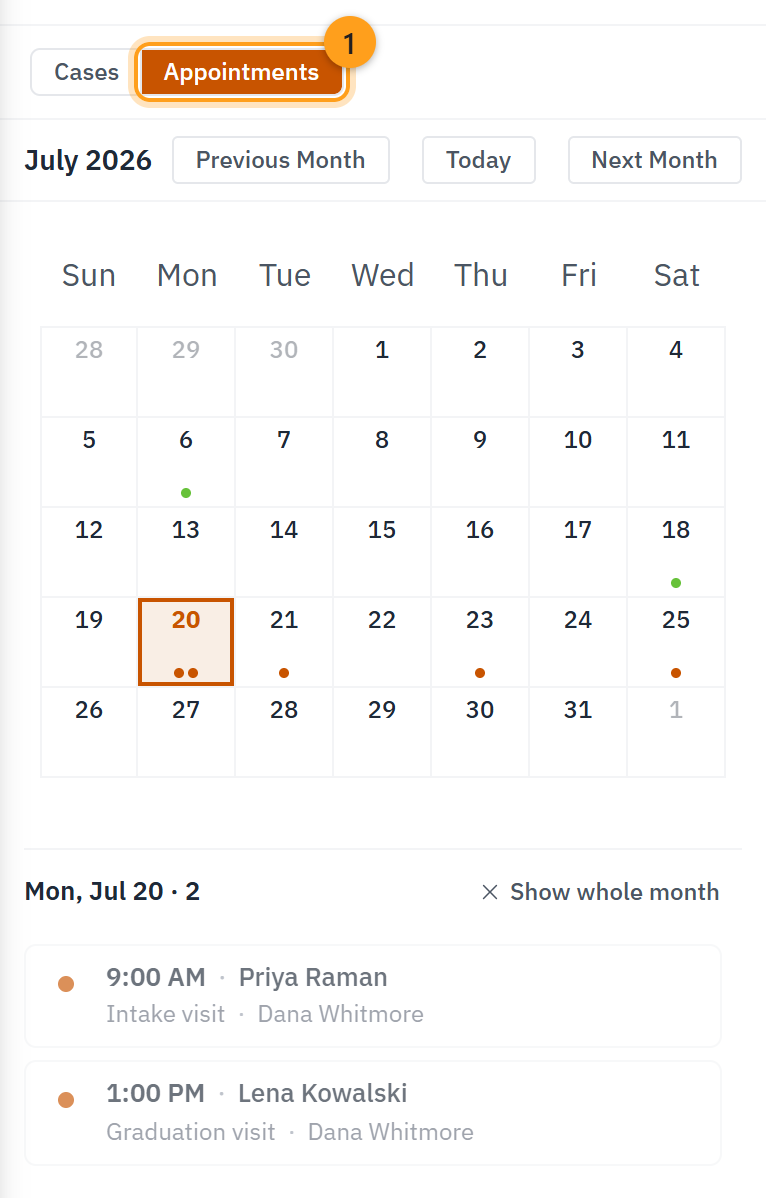
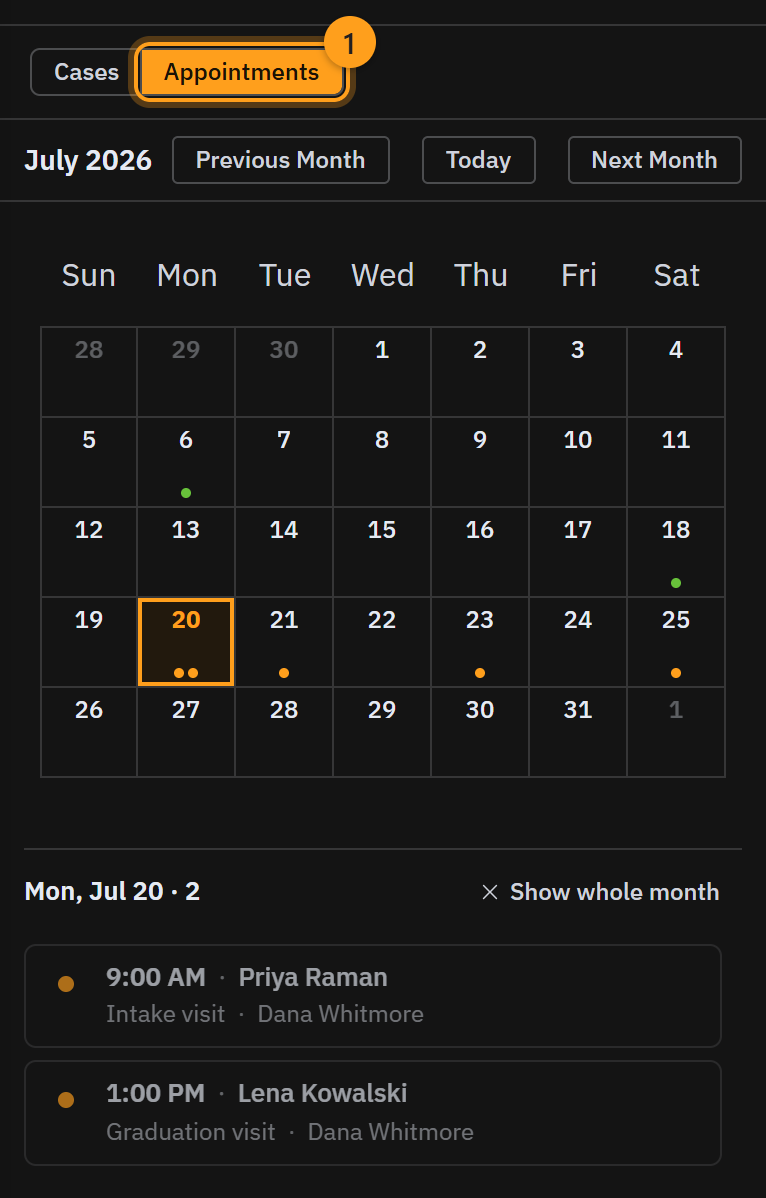
- Every case, every workflow. Unlike the case list, the calendar isn't tied to the workflow you picked at the top — it gathers every booked visit, with its date and time, from all the workflows you work in. (If your role covers only some workflows, the calendar shows just those.)
- Dots mark the days. Each day with visits gets a colored dot per visit, and the color shows how the visit stands: booked, completed, no-show, or cancelled. A +2 means the day holds more visits than the dots can show.
- Select a day to list that day's visits underneath, each with its time, who it's for, and who on your team is handling it. The calendar opens with today already selected; Show whole month brings back the full month's list.
- Page through months with Previous Month, Today, and Next Month.
- Select a visit to open its case on the right — handy when someone calls about their appointment and you want the full story in one click.
Start your day here
Open Appointments first thing in the morning: today's visits are already listed, so you know who's coming in before you plan anything else.
Open a case
Select any case in the list to open it on the right, with all its tabs and the Update Status button for moving it forward.