

Appearance
Microsoft Authenticator
Microsoft Authenticator is Microsoft's free app for iPhone and Android. Plenty of workplaces already use it to sign in to email, so there's a good chance it's on your phone — and it holds codes for any other site just as happily, the portal included.
Official site: microsoft.com/security/mobile-authenticator-app
Add the portal to Microsoft Authenticator
Start with the portal's QR code open on your computer — that's Step 2 on the TOTP page.
- Install Microsoft Authenticator from your app store, if it isn't already there, and open it.
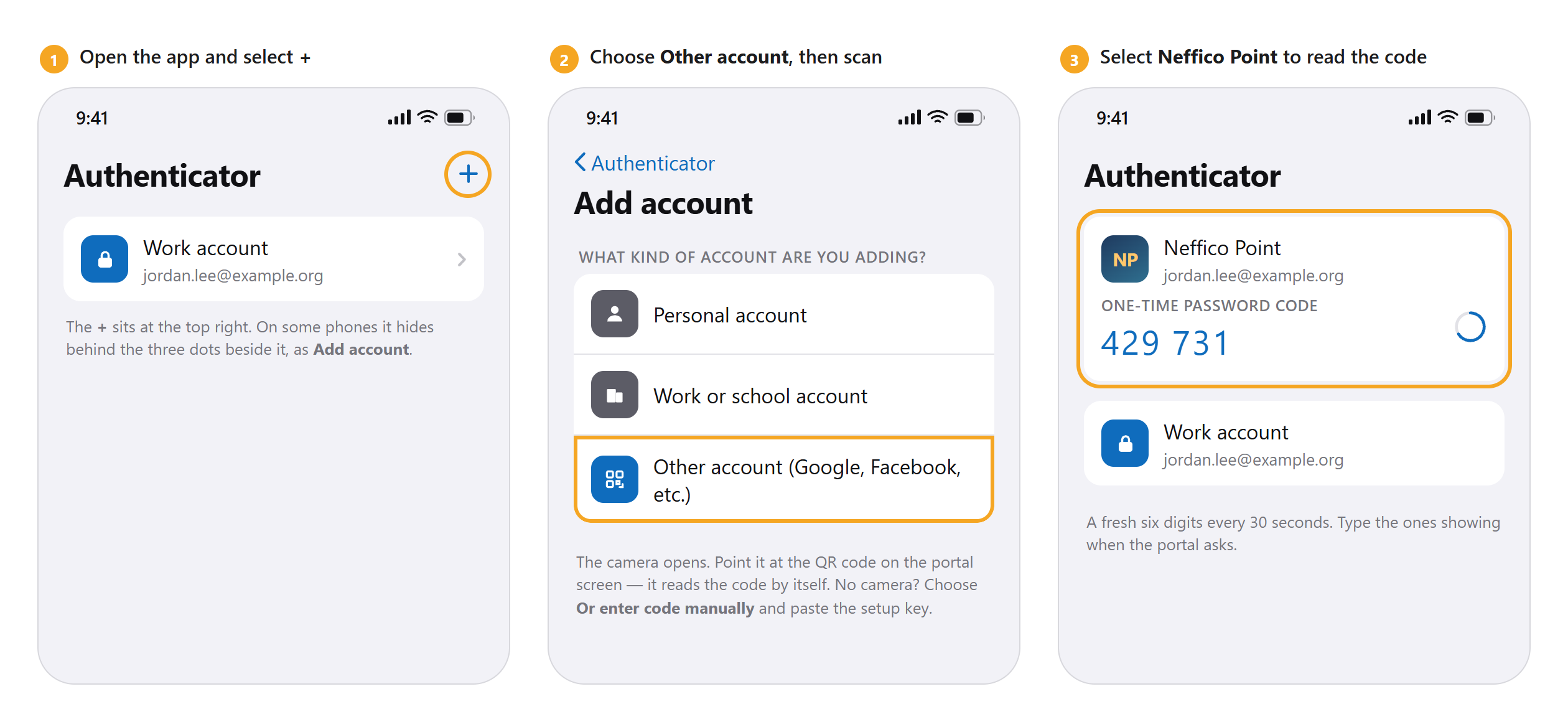
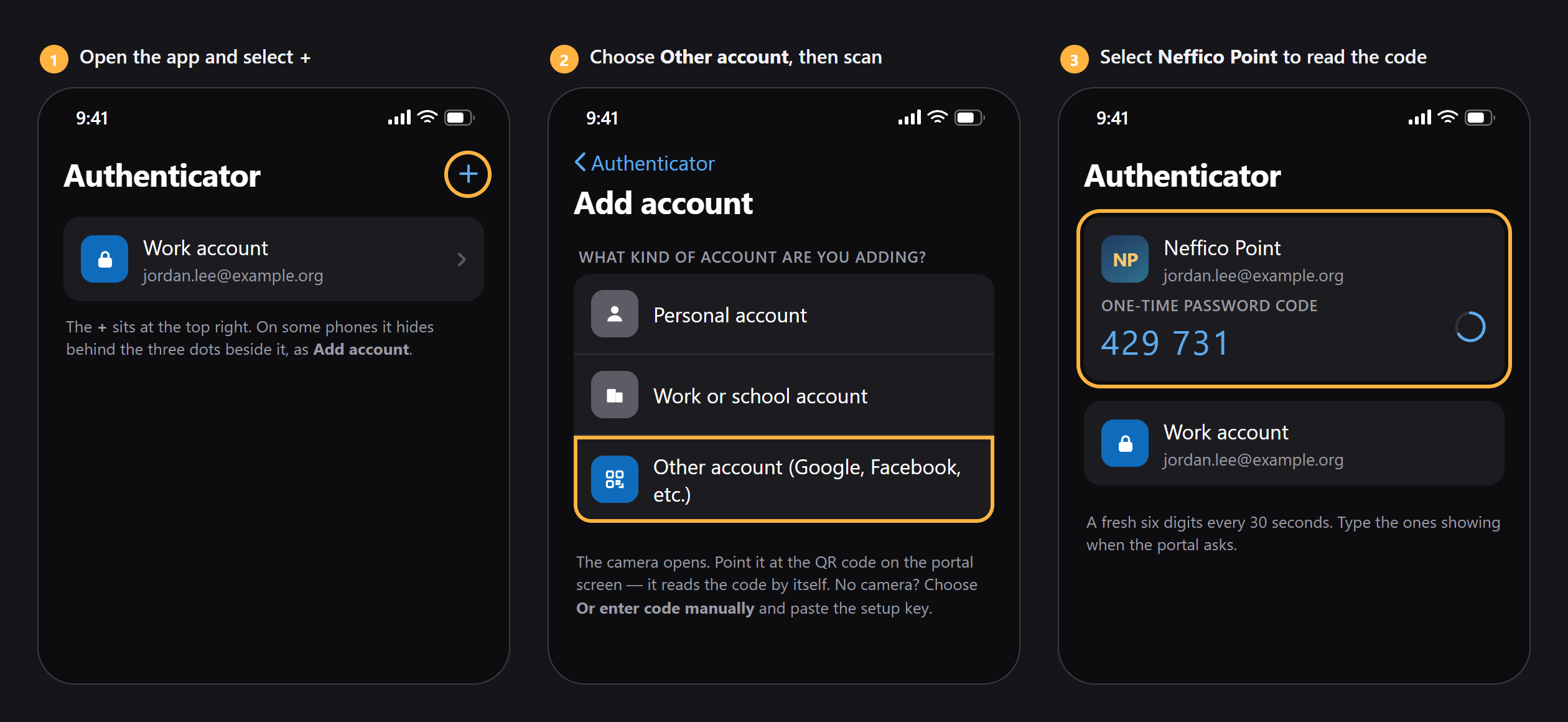
- Select + at the top right. (On some phones it's tucked behind the three dots beside it, as Add account.)
- Choose Other account (Google, Facebook, etc.). This is the right choice even though the portal isn't in that list — it's the option for every site that isn't Microsoft's own.
- The camera opens. Point it at the QR code on your computer screen; it reads the code by itself and adds an entry named Neffico Point.
Can't scan — no camera, or you're reading this on the same phone? Choose Or enter code manually, then select Copy in the portal and paste the setup key in.
Then finish in the portal — type the six digits into Verification code and select Finish setup. The portal signs you out so you can prove the code works; sign back in and you're done.
Signing in from now on
Open the app and select Neffico Point. The six digits sit under One-time password code, with a ring beside them that empties as the code counts down. If it's nearly out, wait for the next one rather than racing it.
Backing up your codes
Turn this on now — it's what saves you if your phone is lost or replaced.
- On Android: open the app's Settings, find Backup, and switch Cloud backup on. It asks you to sign in with a personal Microsoft account, which is where the backup is kept.
- On iPhone or iPad: backups now ride along with iCloud. Open your iPhone's Settings, tap your name, then iCloud, and make sure Authenticator is switched on.
To restore on a new phone, install the app, choose Begin recovery, and sign in with the same account.
Lost the phone with your codes?
If your backup was on, restore it on the new phone and your codes come back. If it wasn't, see Lost your phone?.