

Appearance
TOTP
TOTP is short for time-based one-time password — the six-digit code your authenticator app shows, which changes every 30 seconds. It's how the portal does two-factor authentication. Here's how to set it up.
Step 1 · Choose an authenticator app
The portal works with authenticator apps only. Codes by text message or email aren't options.
If you have an iPhone or iPad
You already have one. The Passwords app on your device stores codes next to your saved passwords and fills them in at sign-in. Nothing to download.
On any other phone
Install an authenticator app from your app store. Any of these work, and each has its own page with pictures:
- Keeper — a password manager. If your organization already gives you Keeper, your code can sit next to your password with no extra app.
- Microsoft Authenticator — free, and already on a lot of work phones.
- Google Authenticator — free; sign in with your Google Account so your codes are backed up.
Pick one that backs up
If your phone is lost, stolen, or replaced, an app that backs up puts your codes back by itself. Without one, your setup has to be reset by hand before you can get in again. Each page above says where that app keeps its backup and how to switch it on.
Step 2 · Open the setup screen
Three ways in — use whichever you meet first:
- Select Set up now in the yellow banner.
- Select Set up now in the Two-factor authentication required window.
- Open the profile menu, choose Profile, then under Account security select Set up authenticator app.
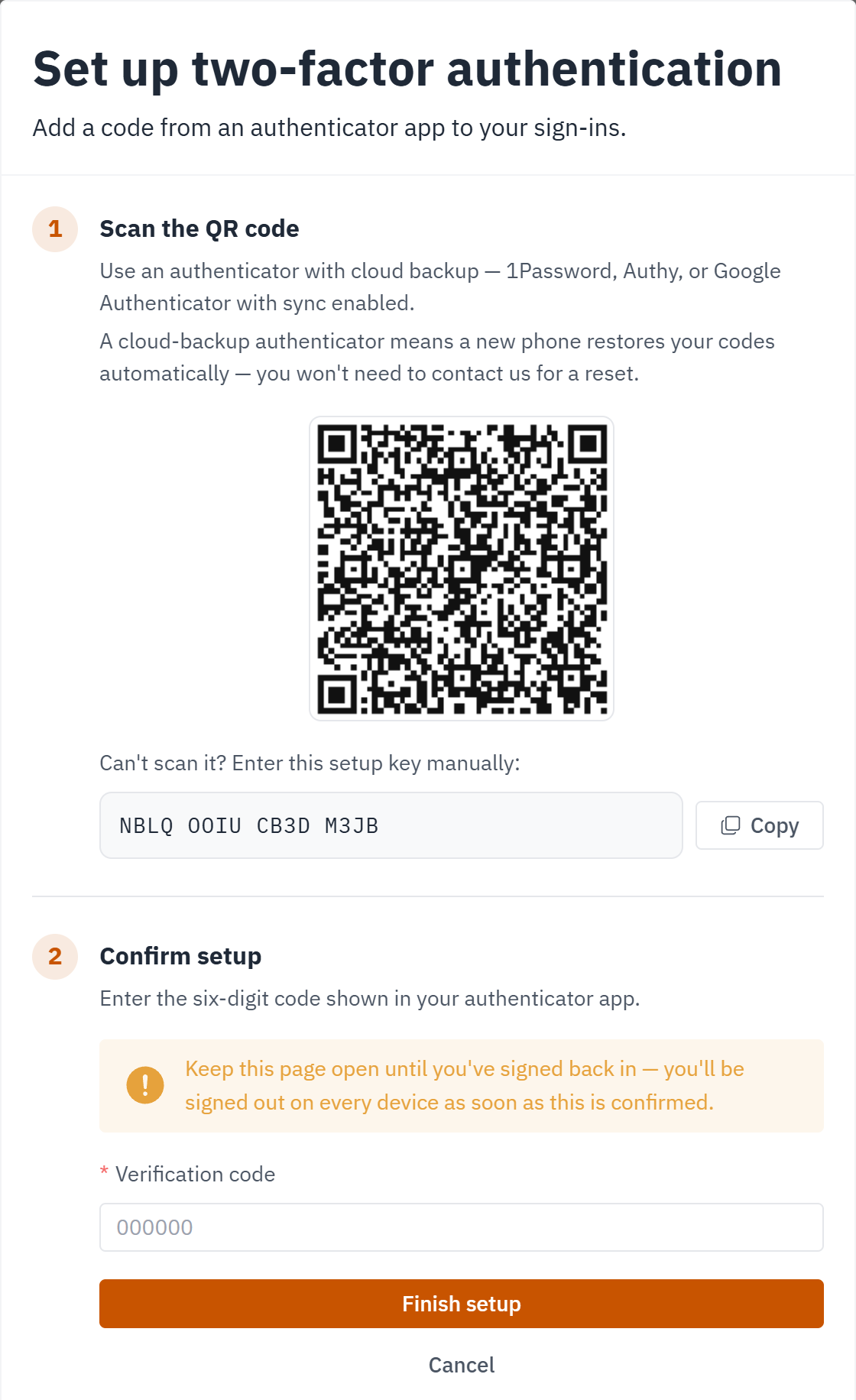
Set up two-factor authentication opens with a QR code and a setup key. Leave it open for the next step.
Reading this on the phone you're setting up?
You can't point the camera at the screen it's on. Use the setup key instead: select Copy, then paste it into your app.
Step 3 · Add the portal to your app
On an iPhone or iPad, with the Passwords app
Please see the iPhone and iPad page.
On any other phone, with an authenticator app
- Open your authenticator app.
- Choose its add option — usually a +, then Scan a QR code.
- Point your camera at the QR code on the portal screen.
- The app saves an entry named Neffico Point and starts showing a six-digit code.
Can't scan? Every one of these apps also takes the key by hand. Select Copy in the portal, then use your app's Enter a setup key option.
The same four steps, with pictures of the screens you'll meet: Keeper · Microsoft Authenticator · Google Authenticator
Step 4 · Confirm, then sign back in
- Back in the portal, go to Confirm setup.
- Type the six digits from your app into Verification code. If yours expires while you're typing, use the next one.
- Select Finish setup.
The portal signs you out on every device as soon as it accepts the code. That's on purpose — it makes you prove your app works before you walk away. Sign in again, type the current six digits, select Verify, and you're back in.
Keep the setup page open until you've signed back in
Finish the sign-in straight away, while the app and the codes are in front of you.
Signing in from now on
Every sign-in gains one step:
- Enter your email and password.
- Enter your verification code appears. Open your authenticator app and read the current six digits.
- Type them in and select Verify.
On an iPhone or iPad, Passwords usually offers the code just above the keyboard.
Changing your authenticator app
Moving to a new phone, or switching apps? Do it while the old app still works. Open the profile menu, choose Profile, then under Account security select Change authenticator app. Scan the new QR code and confirm a code from it — the old app stops working.
Lost the phone with your codes?
Nobody can reset it from inside your workspace — see Lost your phone? for what happens next.