

Appearance
Keeper
Keeper is a password manager rather than a dedicated authenticator app. It holds your passwords in an encrypted vault, and each saved record can also hold that site's six-digit code. So if your organization already gives you Keeper — or you use it yourself — there's no extra app to install: your portal password and your portal code sit in the same place.
Official site: keepersecurity.com
Do you already have Keeper?
Keeper is a paid product for most people, and its free version is limited to a handful of records on one phone. If nobody has given you a Keeper account, pick one of the free apps instead — Microsoft Authenticator or Google Authenticator.
Add the portal to Keeper
Start with the portal's QR code open on your computer — that's Step 2 on the TOTP page.
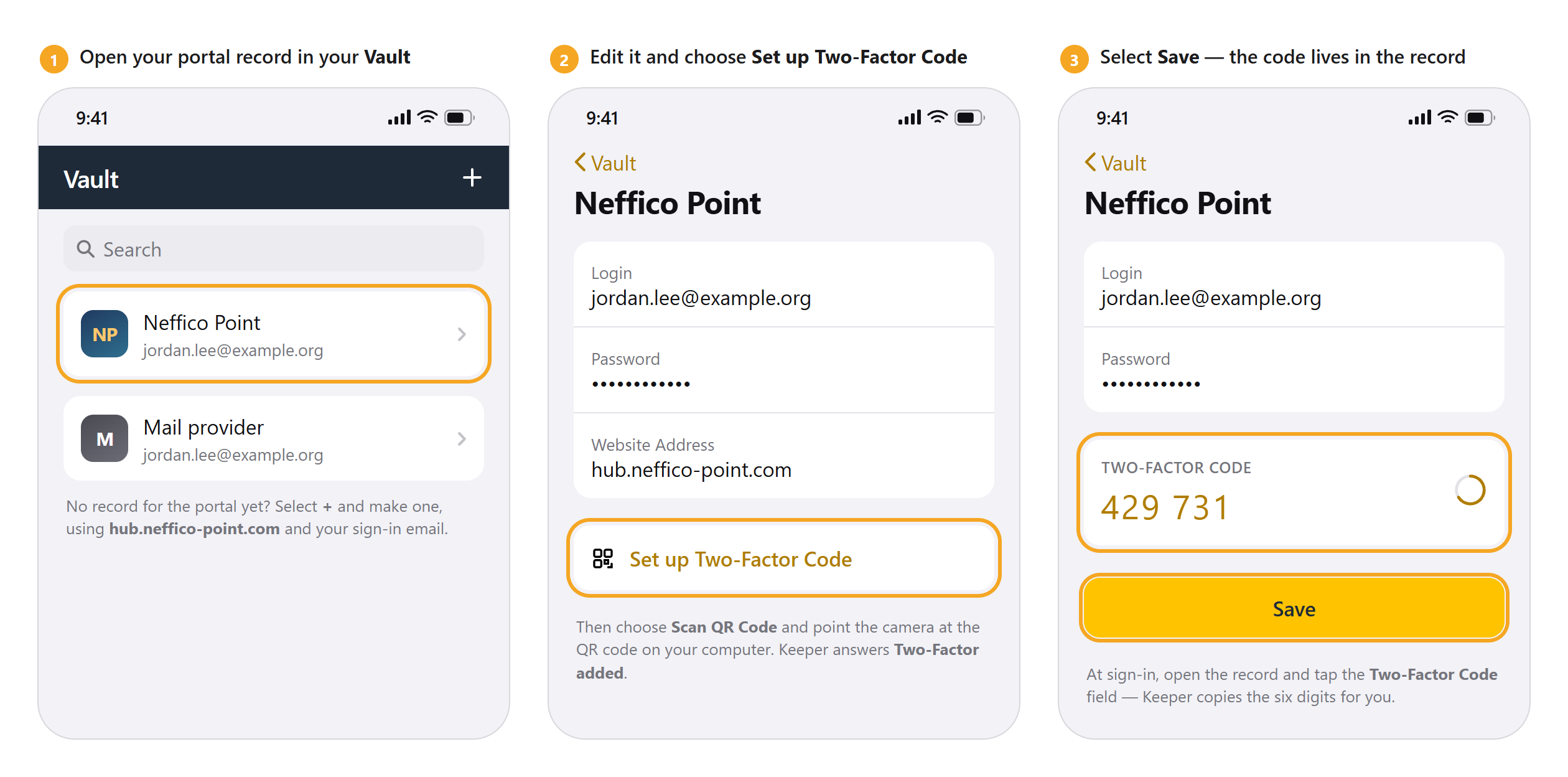
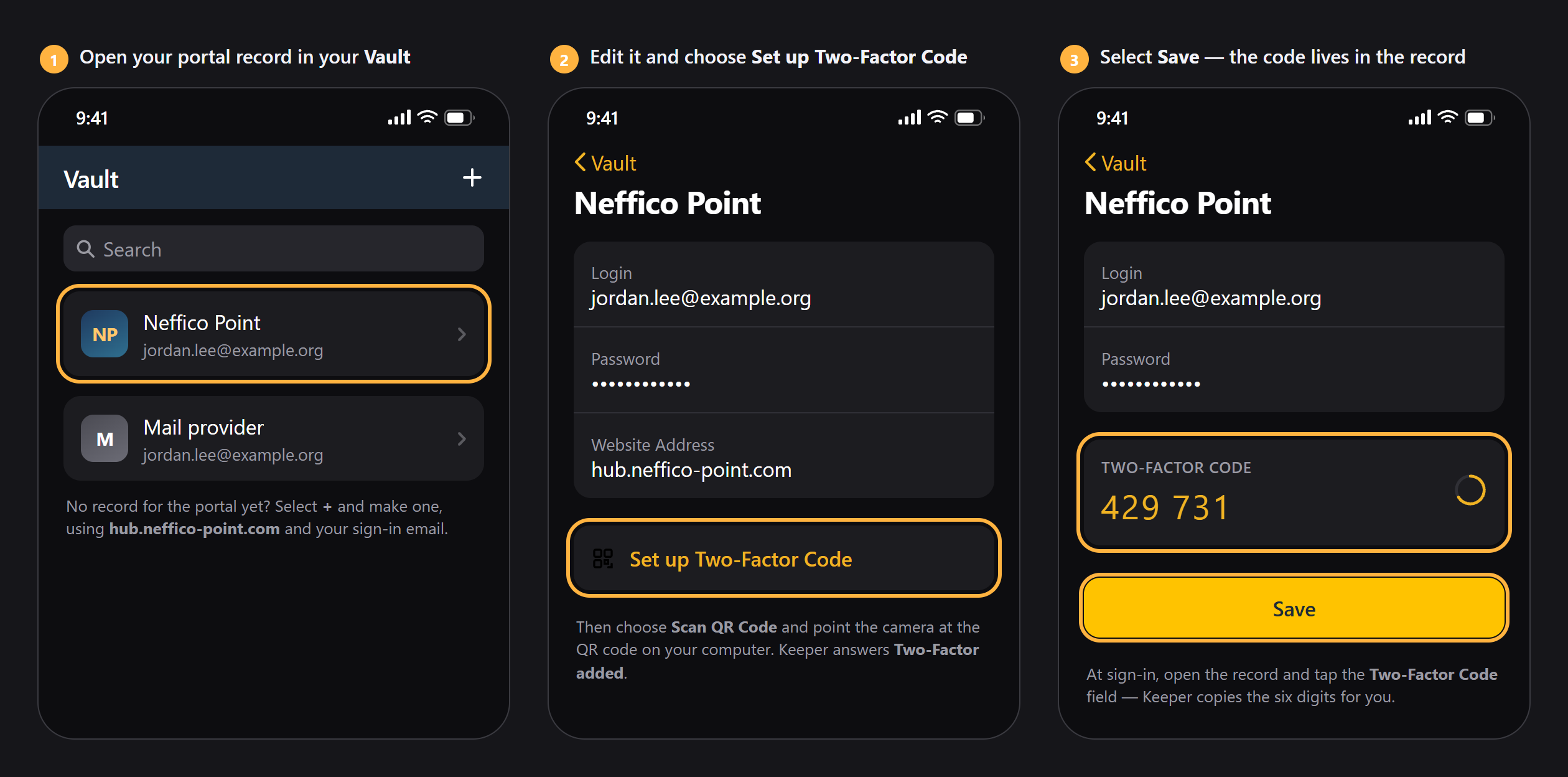
- Open Keeper on your phone and find your record for hub.neffico-point.com. No record yet? Select + and create one, using the portal address and your sign-in email.
- Open the record and choose Set up Two-Factor Code.
- Choose Scan QR Code and point your camera at the QR code on your computer screen. Keeper answers Two-Factor added.
- Select Save. This part matters — a code that isn't saved is gone when you leave the record.
Can't scan — for example, you're reading this on the same phone? Select Copy in the portal to take the setup key, then paste it into Keeper's manual entry field instead of scanning.
Then finish in the portal — type the six digits into Verification code and select Finish setup. The portal signs you out so you can prove the code works; sign back in and you're done.
Signing in from now on
Open your Neffico Point record in Keeper and tap the Two-Factor Code field — Keeper copies the current six digits, ready to paste into Enter your verification code. On a computer, the Keeper browser extension can fill them in for you.
The code changes every 30 seconds. If yours runs out mid-typing, take the next one.
Backing up your codes
This is Keeper's strong point. Your vault lives in Keeper's cloud, so your code is already on every device you're signed in to, and a new phone gets it back as soon as you sign in to Keeper. Nothing to switch on.
One lock now guards both
Your portal password and your portal code are behind the same master password. Make that master password a strong one, and turn on Keeper's own two-factor authentication so the vault itself isn't protected by a password alone.
Lost the phone with your codes?
With Keeper, you probably haven't lost them — sign in to Keeper on another device and your record is there.
Locked out of Keeper itself is a different problem, and only Keeper can solve it: we have no way to recover a Keeper master password. What we can do is clear your portal setup so you can start again with any app you like. Ask your admin to contact Neffico support — the steps are under Lost your phone?.