

Appearance
Notes for a session
Use this view right after a meeting. Pick a date in Session and everything about that one meeting is on one screen.
Open the group, select the Notes tab, then choose a date in Session. Leave Participant on "— all —".
The session note, at the top
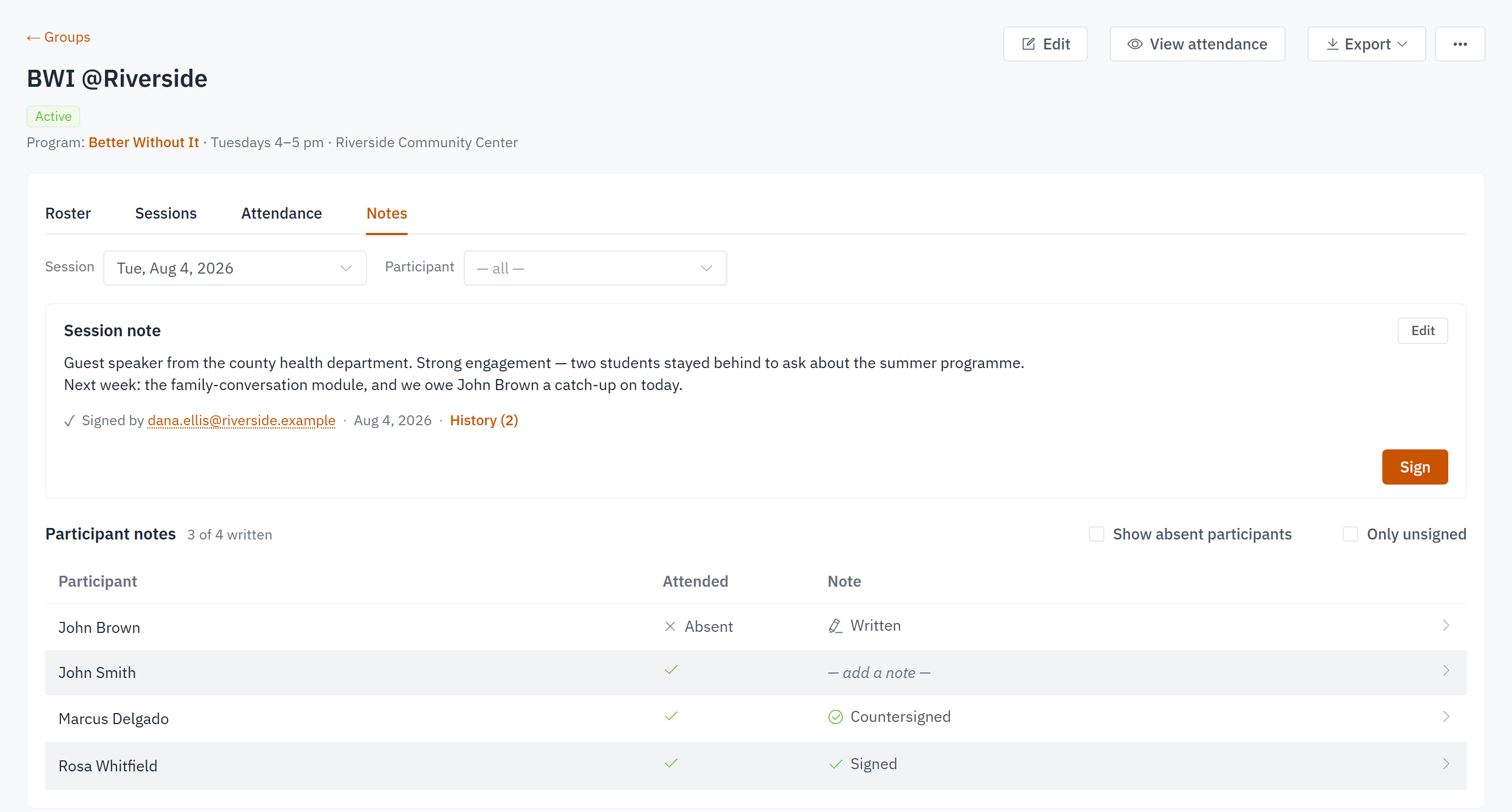
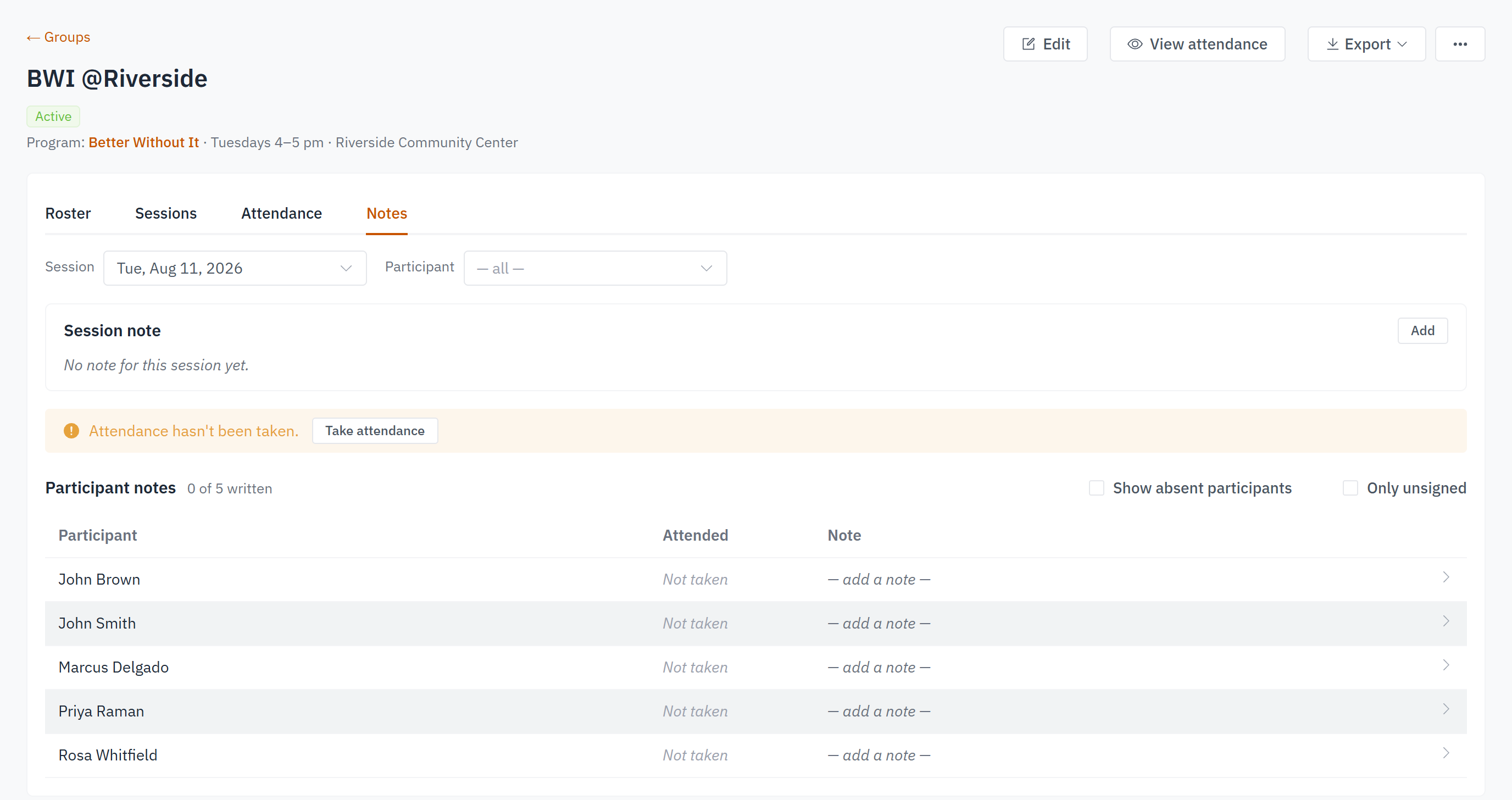
The first block is the Session note — the one about the whole meeting. Select Add to write it, or Edit to change it. A long note is cut short with a Show more link, so it doesn't push the list of people off the screen.
Underneath you'll see who last saved or signed it and when, plus a History link with the number of entries beside it. If your role includes signing notes, a Sign button sits below the note — that's how you sign a session note without editing it.
If attendance hasn't been taken
A yellow bar appears when nobody has marked attendance for this meeting yet. Select Take attendance and you land on the Attendance tab with the right session already chosen. The bar shows for everyone, but the button only appears if your role can take attendance.
You won't see the bar on a meeting that hasn't happened yet, or once somebody has marked even one person. A half-finished grid isn't worth nagging about.
It's only a reminder. Nothing on this screen is switched off, so write your notes first and take attendance afterwards if that suits you. Until somebody does, the Attended column reads Not taken all the way down.
One row per person
Below that is Participant notes, with a count like 12 of 18 written. The count describes the meeting, not the rows you happen to be looking at, so it stays put when you use the checkboxes.
Each row has three things:
- Participant — their name, plus a small label if they've completed the program, withdrawn, or been removed from the group.
- Attended — a check mark for present, Absent or Excused for the rest, and Not taken when nobody has marked attendance.
- Note — how far along that person's note is:
| What you see | What it means |
|---|---|
| — add a note — | nothing written yet |
| ✎ Written | someone wrote it, nobody has signed it |
| ✓ Signed | the person who wrote it signed it off |
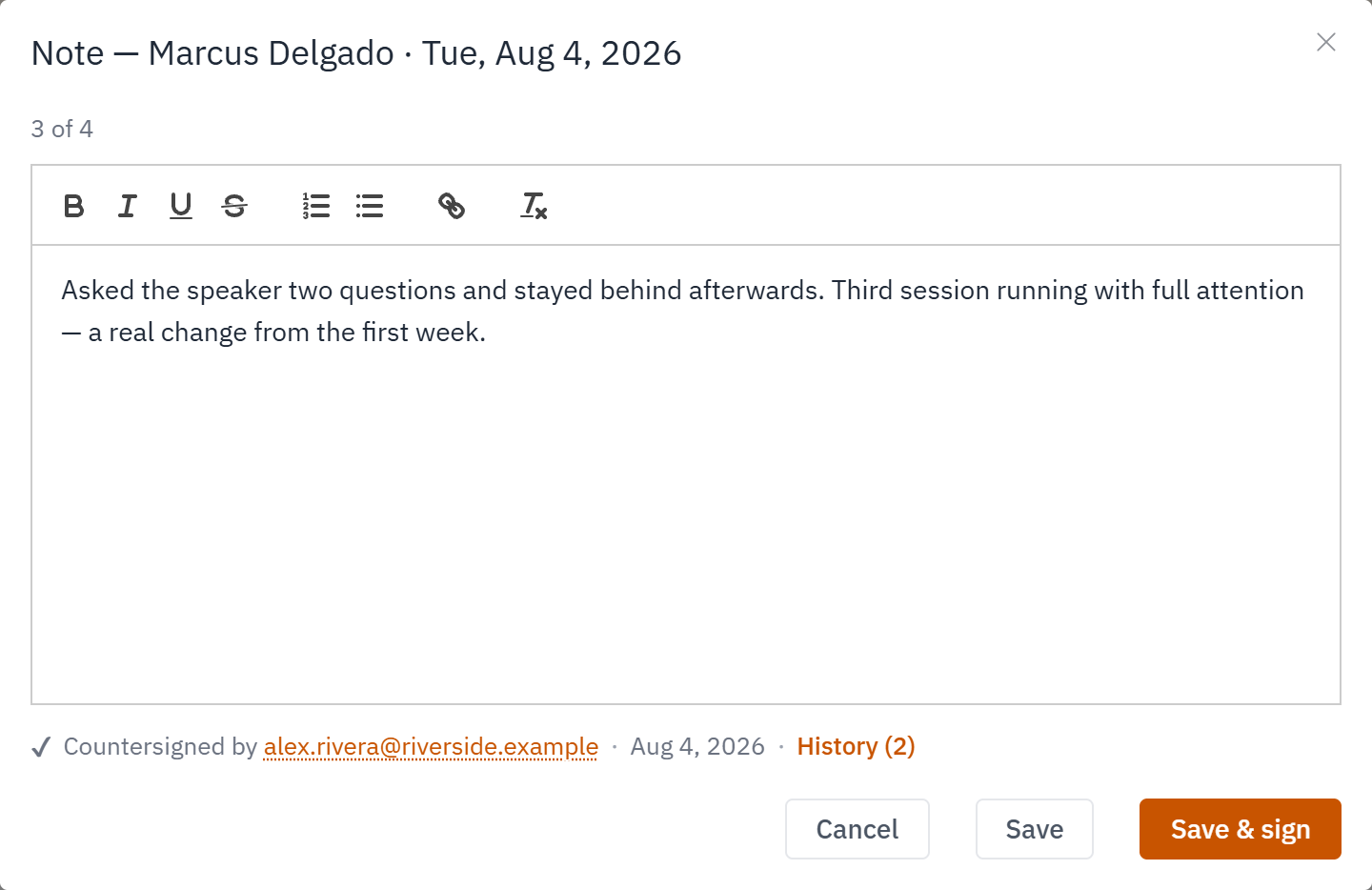
| ✔ Countersigned | a second person has signed it too |
The two checkboxes
Show absent participants — off by default. People marked Absent or Excused drop off the list, so what's left is everyone who wasn't marked away. Check it when you want the whole roster.
An absence with a note always shows
If someone wrote a note about that person for that meeting, their row stays on the list either way. A note about a missed session — "called guardian, back next week" — is often the one you most need to see.
Only unsigned — off by default. Check it to leave only the rows that still need a signature: the blank ones and the ✎ Written ones. It's your what's-left list, and it's worth a look at the end of a run of notes.
Write someone's note
Select any row and that person's note opens. Empty rows work too — — add a note — is how you start writing.
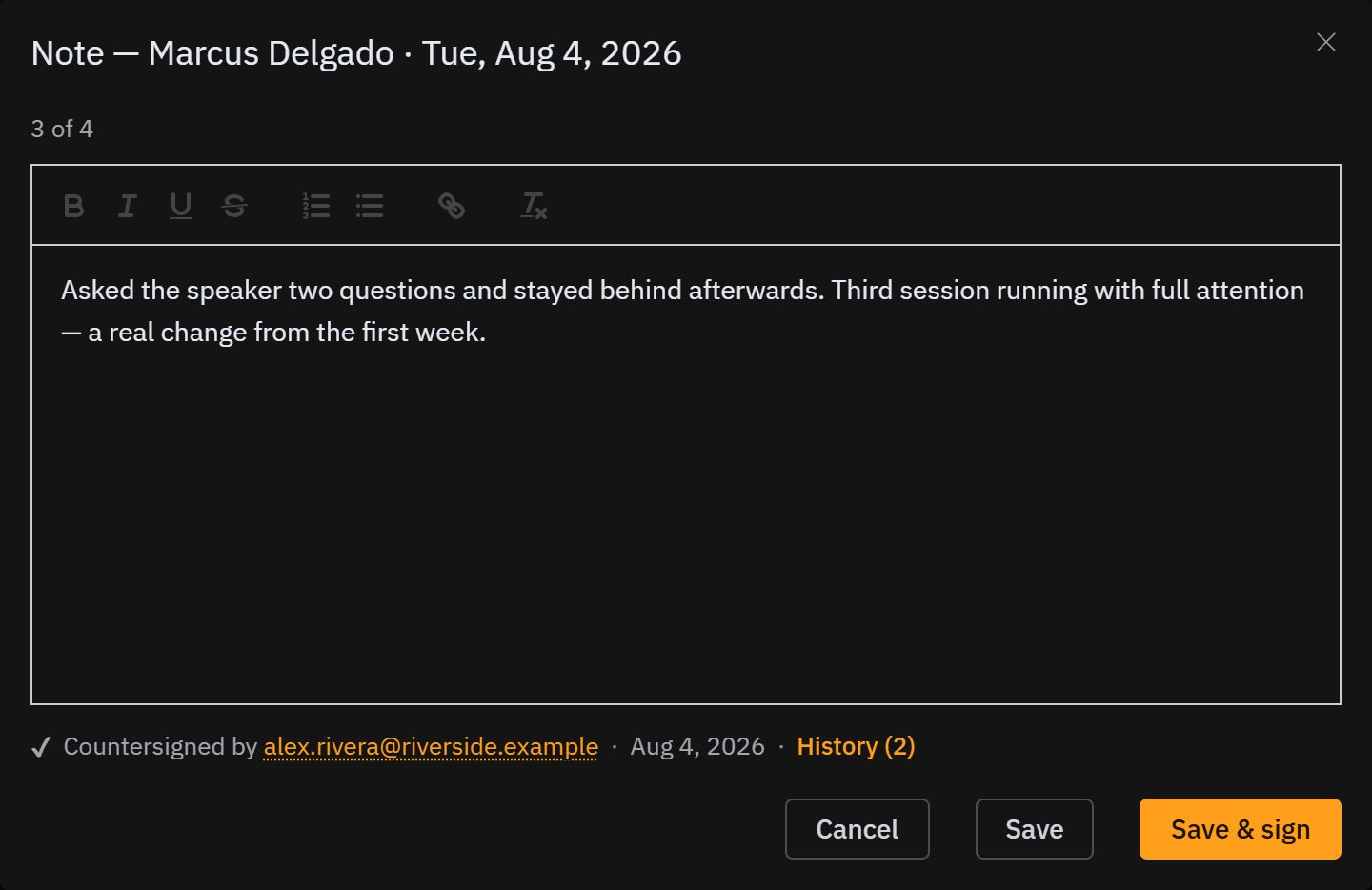
The window says whose note it is, which meeting it's for, and where it sits in the list (4 of 18). Write your note, then choose:
- Save — keeps the note as a draft. You can come back and sign it later.
- Save & sign — saves it and signs it off in one step.
Some notes open with no editor and a Close button: an archived group, a participant who was removed from the group, or a role that reads notes but doesn't write them. The note itself stays readable in all three cases.
You may not be able to sign
Save & sign is greyed out if your role doesn't include signing notes. Hover it and it says so. You can still write and save, and someone with that role signs it afterwards — see Roles and permissions. It's also greyed out when you've already signed the note and haven't changed anything, because there'd be nothing new to record.
Saving a signed note removes the signature
If you save a note that's already signed, the portal asks you to confirm first. Choose Save anyway and the signature comes off, so the note needs signing again.
This happens when you change the wording. It also happens when you save someone else's signed note without changing a word, because the signature was theirs, not yours.
→ Next: Notes for a participant