

Appearance
Google Authenticator
Google Authenticator is Google's free app for iPhone and Android. It does one job — show six-digit codes — which makes it about the simplest option here. Sign in to it with a Google Account and your codes are backed up too.
Official page: Get verification codes with Google Authenticator
Add the portal to Google Authenticator
Start with the portal's QR code open on your computer — that's Step 2 on the TOTP page.
- Install Google Authenticator from your app store and open it.
- Select + at the bottom right (Add a code).
- Choose Scan a QR code.
- Point your camera at the QR code on your computer screen. The app adds an entry named Neffico Point and starts showing a six-digit code.
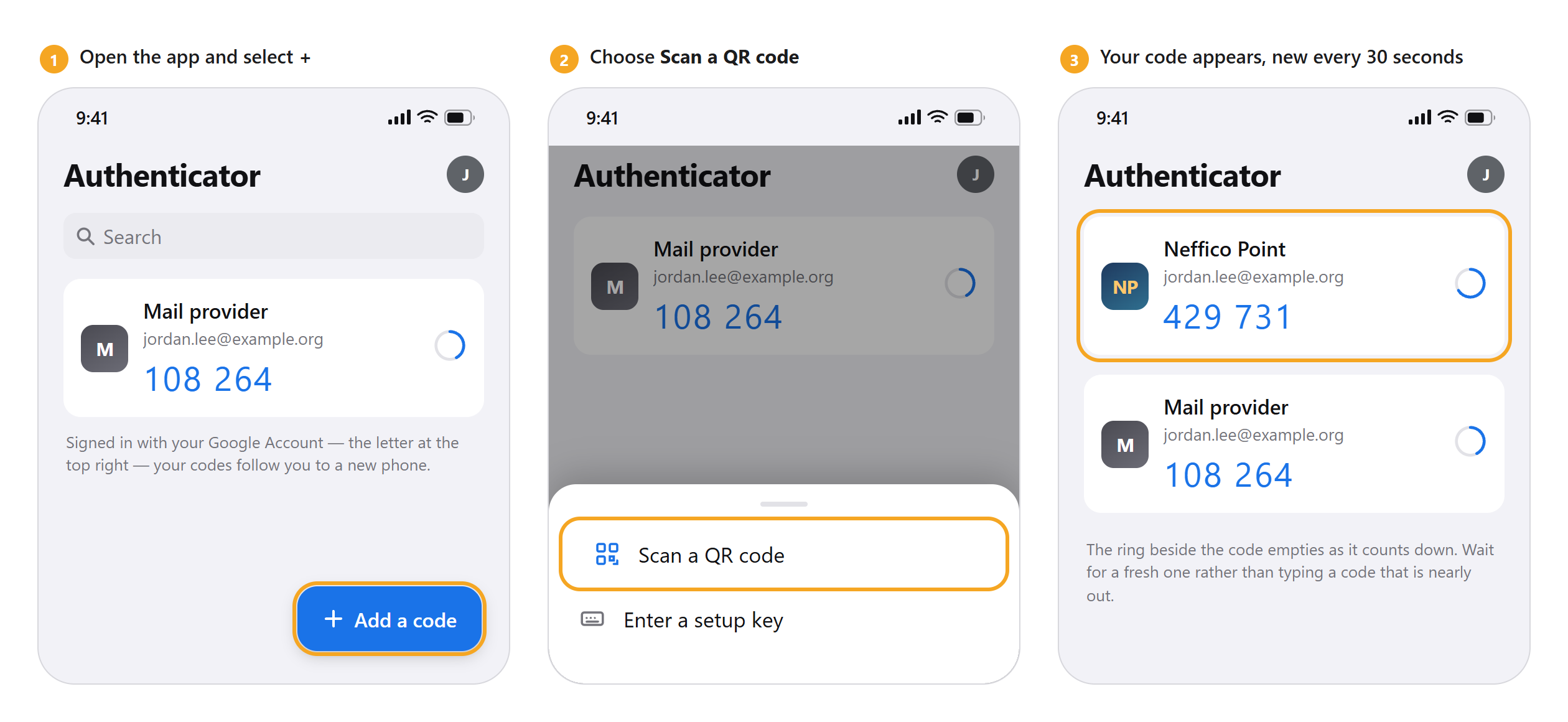
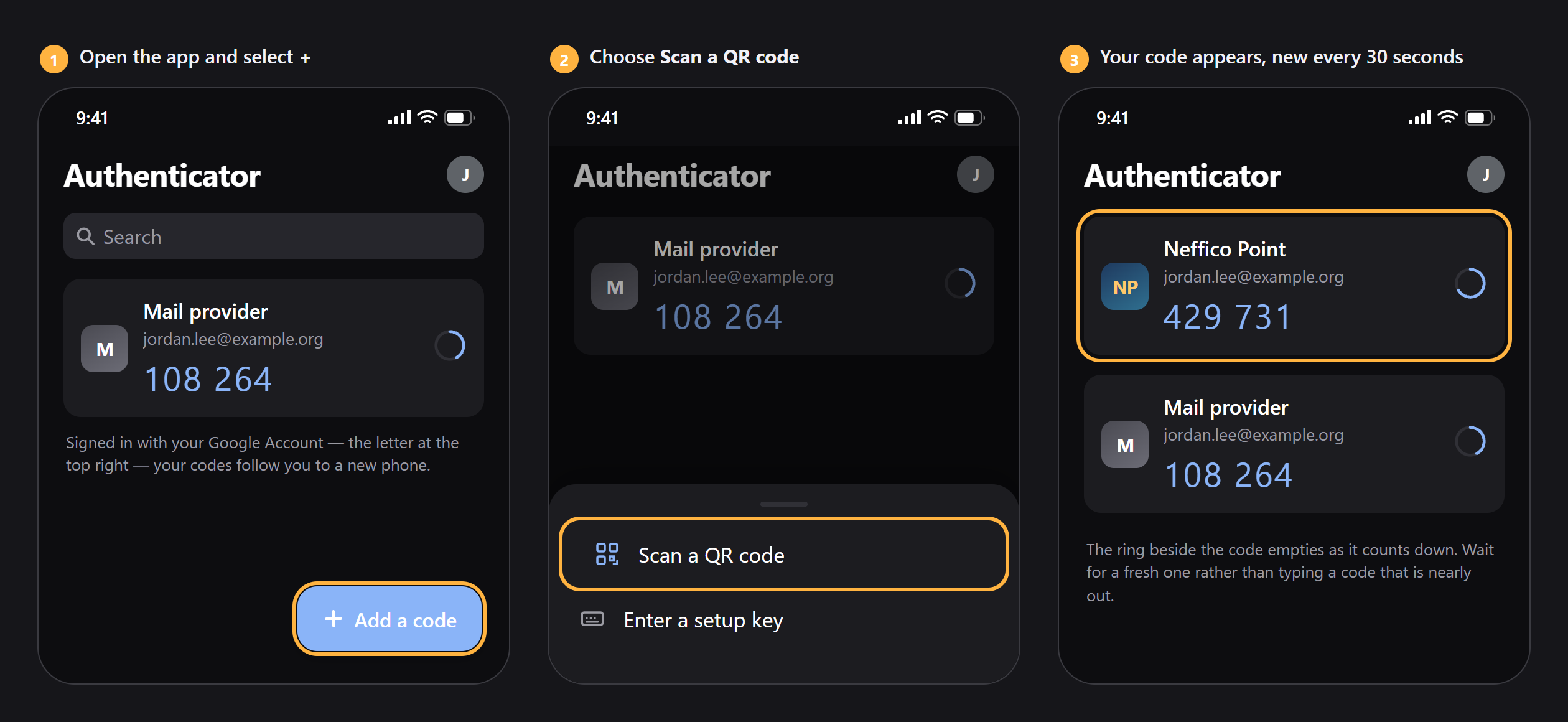
Can't scan — no camera, or you're reading this on the same phone? Choose Enter a setup key instead, select Copy in the portal, and paste the key in. Leave the type set to Time based.
Then finish in the portal — type the six digits into Verification code and select Finish setup. The portal signs you out so you can prove the code works; sign back in and you're done.
Signing in from now on
Open the app and read the six digits under Neffico Point. The ring beside them empties as the code counts down — if it's nearly out, wait for the next one. Tapping a code copies it.
Backing up your codes
Google Authenticator only backs up once you sign in to it.
- Open the app and tap your profile picture — or the letter — at the top right.
- Sign in with a Google Account, and turn on syncing when it offers.
From then on your codes are stored with that Google Account, and installing the app on a new phone and signing in brings them all back.
Not signed in? Your codes live only on that phone
This is the one thing people get caught by. Without a signed-in Google Account, a lost or wiped phone takes your codes with it, and your portal setup has to be cleared by support before you can sign in again.
Moving to a new phone on purpose?
You can carry codes across without the cloud: on the old phone open the menu, choose Transfer accounts → Export accounts, and scan the QR code it shows with the new phone's Import accounts.