

Appearance
iPhone and iPad
If you have an iPhone or iPad, you already have everything you need. Apple's Passwords app — built into the device — stores your portal code next to your saved password and offers it to you at sign-in. There's nothing to download and nothing to sign up for.
Apple's own walkthrough: Automatically fill in verification codes on iPhone.
Add the portal to the Passwords app
Start with the portal's QR code open on your computer — that's Step 2 on the TOTP page.
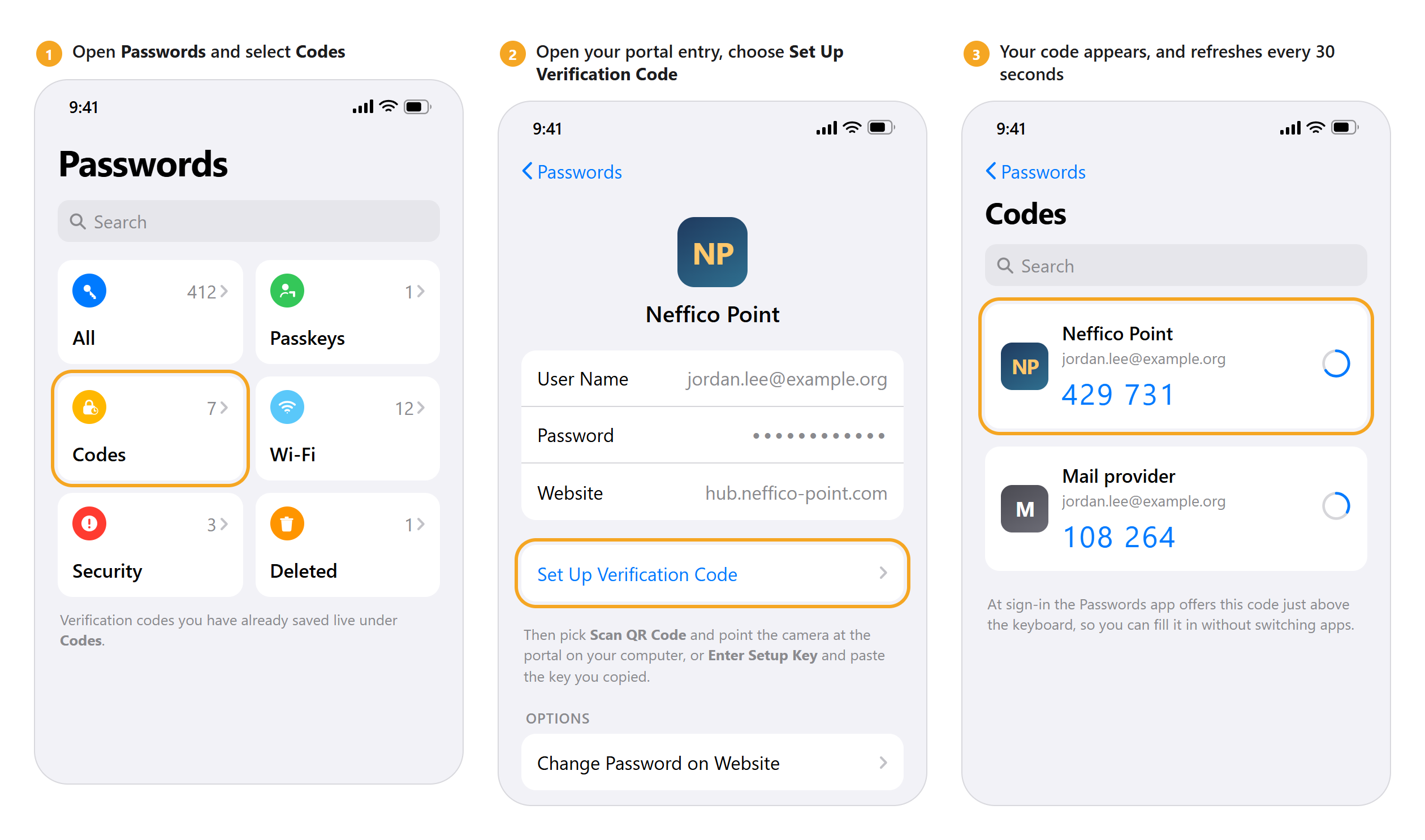
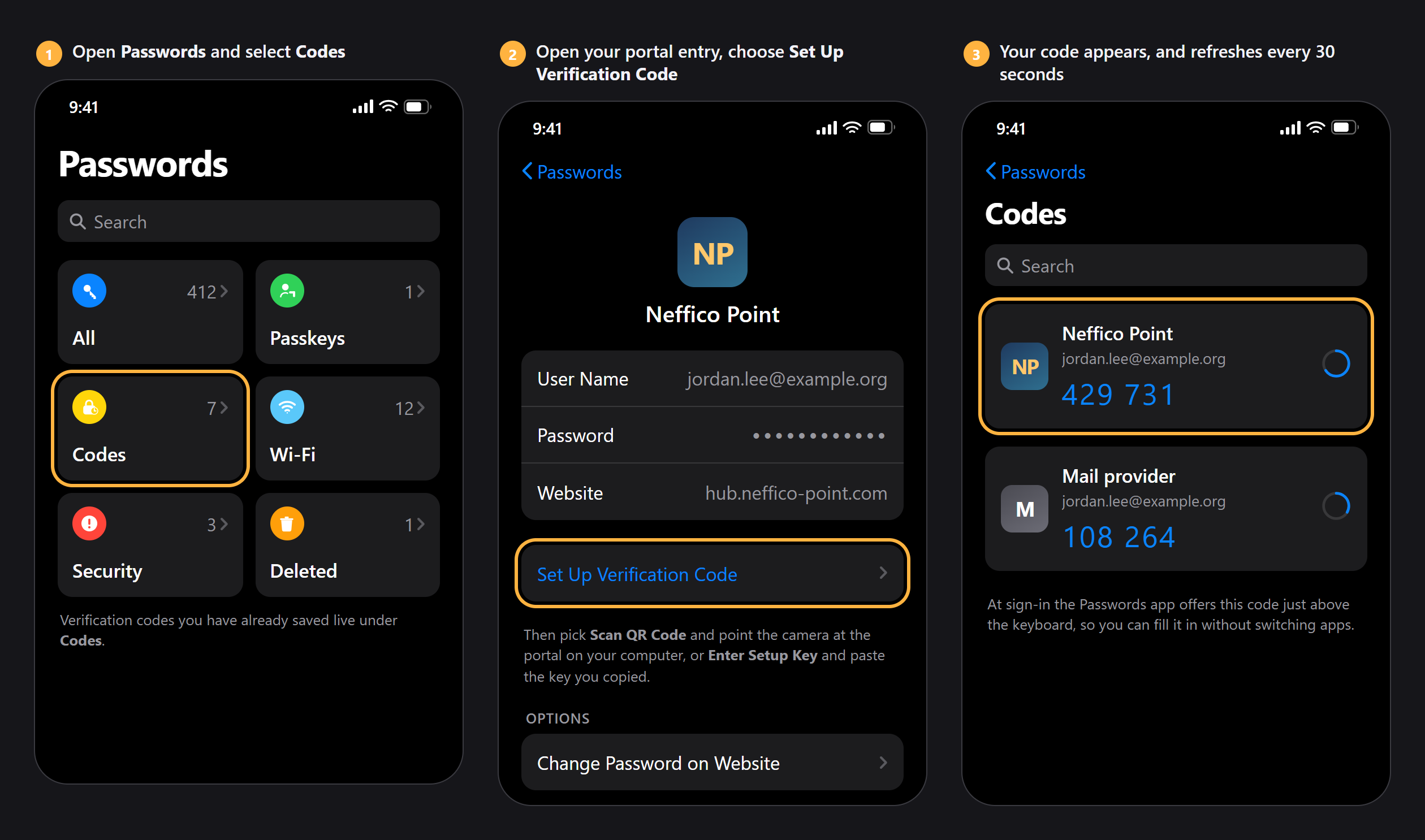
- On your iPhone, open the Passwords app.
- Select All, then find your saved entry for the portal. Don't have one? Add it with +, using hub.neffico-point.com and your sign-in email.
- Open that entry and choose Set Up Verification Code.
- Choose Scan QR Code, then point your camera at the QR code on your computer screen.
- Your code is saved. You'll find it under Codes on the app's home screen from now on.
Both screens on the same iPhone?
Press and hold the QR code and choose the option to add a verification code to Passwords. Or choose Enter Setup Key in Passwords and paste the key you copied.
Then finish in the portal — type the six digits into Verification code and select Finish setup. The portal signs you out so you can prove the code works; sign back in and you're done.
Signing in from now on
Once your code lives in Passwords, the app usually offers it just above the keyboard when the portal asks for it. Tap it and it fills itself in — no switching apps.
If it doesn't appear, open Passwords, select Codes, and read the six digits for Neffico Point.
Backing up your codes
Passwords backs up on its own, as long as iCloud is on for it. Your codes follow you to a new iPhone the moment you sign in with your Apple Account — no reset, no support call.
To check: open your iPhone's Settings, tap your name, then iCloud, and make sure Passwords is on.
A shared Apple Account is a bad idea here
If your household shares one Apple Account, everyone signed into it can see your codes. Use your own Apple Account for a work sign-in.
Lost the phone with your codes?
Nobody can reset it from inside your workspace — see Lost your phone? for what happens next.