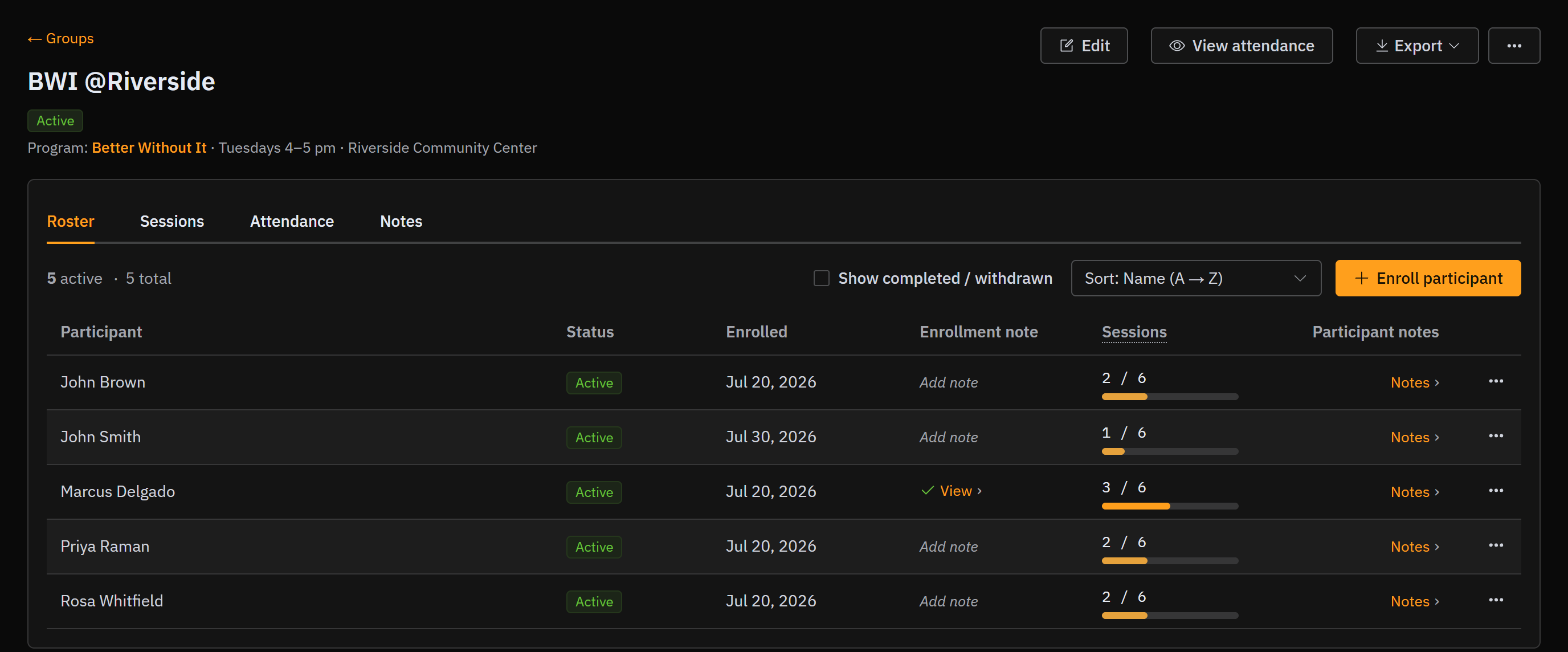
Appearance
Building a roster
A roster group is a class with a known set of people. You enroll them in advance from your existing intake cases, so the roster always links back to the real person and their case.
Everyone on the roster is expected at every session. That's why absences are recorded here, and why an open class works differently. See Drop-in groups.
Before you can enroll anyone, you'll need a program and a group. See Groups & Programs to create them.
At a glance
| Roster | |
|---|---|
| Who's expected | People you enrolled in advance |
| Taking attendance | Mark everyone Present, Absent or Excused, then save |
| Joining the roster | You enroll them |
| Absences | Recorded |
Enroll someone
- Open the group and go to the Roster tab.
- Select Enroll participant.
- Start typing a name to search. Only eligible cases appear — that means cases on one of the program's intake workflows that are currently in a new or active step. People who have already graduated or closed are left out.
- Select the right case, set the enrollment date if it isn't today, add an enrollment note if you'd like (for example, "Transferred from another group"), and select Enroll.
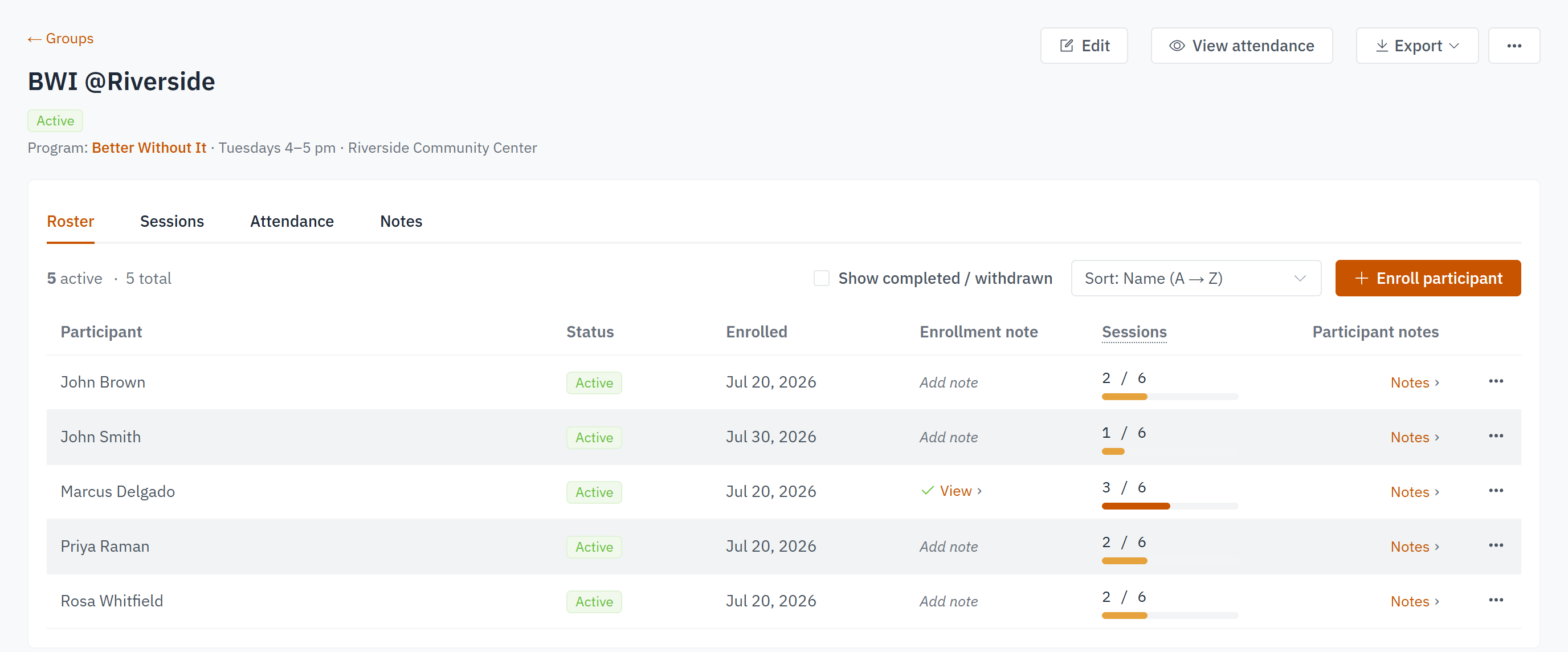
The person now appears on the roster with an Active status and their enrollment date.
The enrollment note
The Enrollment note column on the roster holds one short note about this person's place in the group — a transfer, a scheduling arrangement, something that stays true whatever week it is.
- If there's a note, the column shows ✓ View ›. Hover to read it, or select it to open it.
- If there isn't, select Add note.
You can also reach it from the ⋯ menu on the row.
It's one line, and saving replaces it
The enrollment note keeps no history and doesn't record who wrote it. Anything about a particular meeting belongs in a participant note instead — those keep the full trail. See Notes.
The enrollment date decides which sessions count
A participant only appears on sessions held on or after the date you set here. Backdate it if they've been attending for a while and you're catching the records up.
The progress bar
Next to each participant you'll see their session count, like 0 / 6, with a small progress bar. Taking attendance moves it, though only Present counts toward the number. If the program sets a required number of sessions, the bar measures against that goal and a green Ready tag appears once they reach it.
Who can be enrolled
If you can't find someone, check that their case is on one of this program's eligible workflows and is still active — that's what makes a case eligible to join.