

Appearance
Notes for a participant
Use this view to follow one person over time. Pick a name in Participant and you get a row for every meeting that was theirs, newest first.
It's the view for getting ready for a check-in, writing a referral, or answering "how is this person doing?"
Open the group, select the Notes tab, then choose a name in Participant. Leave Session on "— all —".
Selecting Notes › next to someone on the Roster tab does the same thing in one step.
One row per meeting
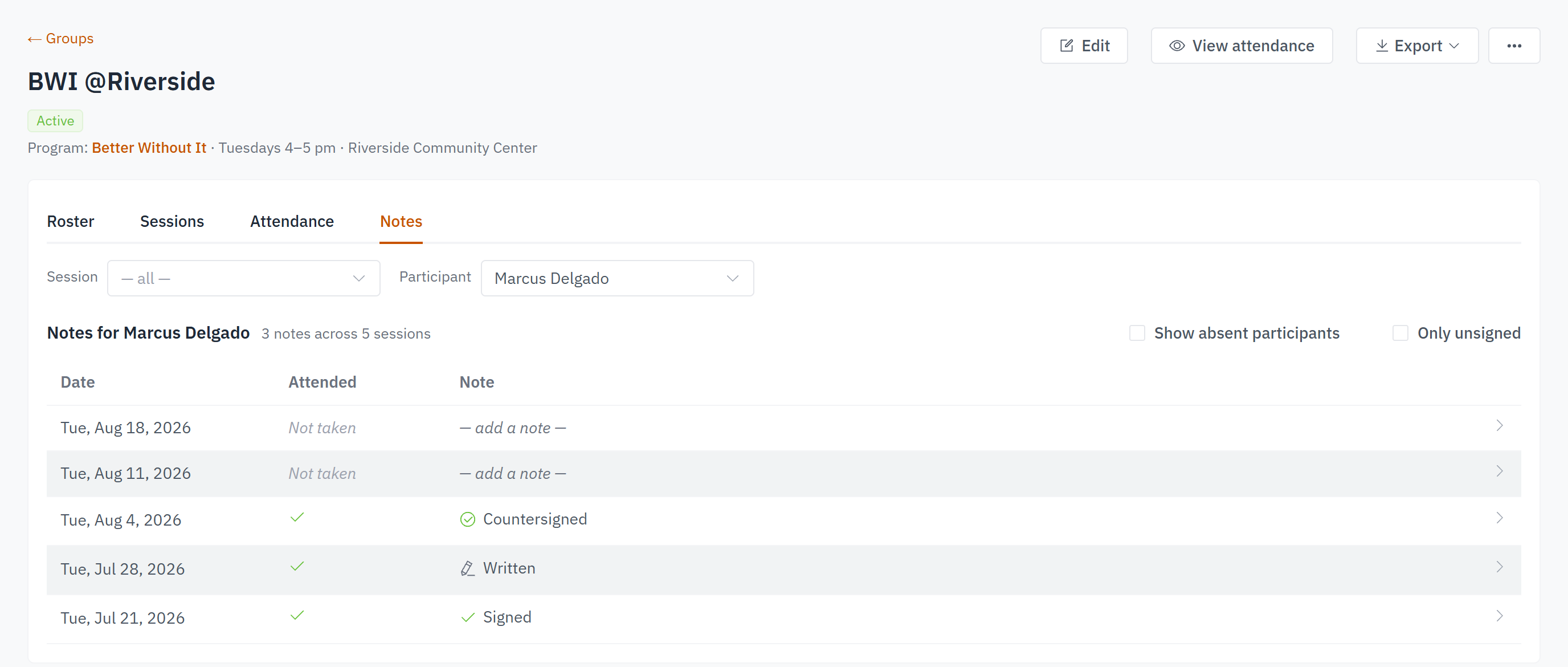
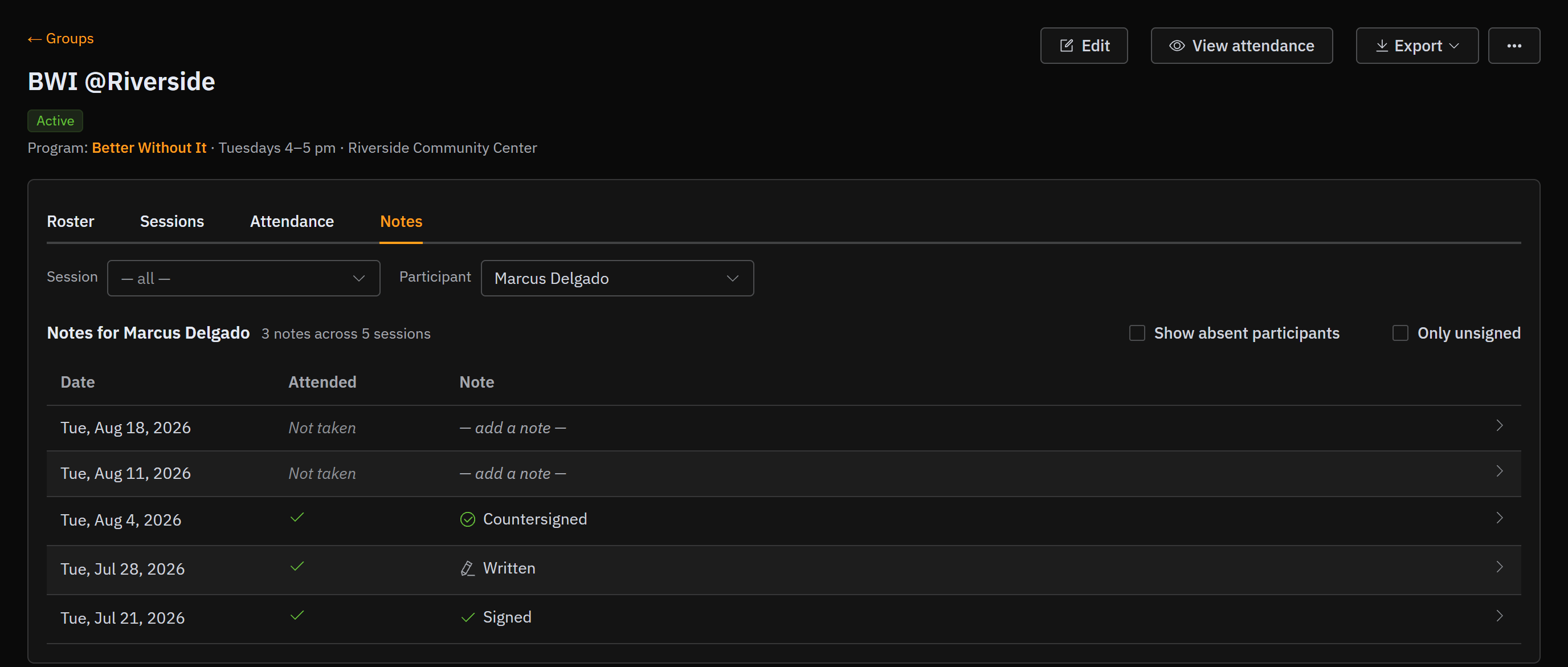
The heading reads Notes for and their name, followed by a count like 3 notes across 8 sessions.
Each row has three things:
- Date — the meeting.
- Attended — a check mark for present, Absent or Excused for the rest, and Not taken when nobody marked attendance that day.
- Note — the same four states as the session view: — add a note —, ✎ Written, ✓ Signed, ✔ Countersigned.
Select any row to open that note. Writing, saving, and signing work exactly as they do in Notes for a session.
Only their own meetings
The list covers the meetings held while this person was enrolled, not every meeting the group ever had. Someone who joined in week 6 gets no rows for weeks 1 to 5.
Two things pull a meeting onto the list anyway: a note somebody already wrote about them for it, or an attendance mark saying they were there. Neither disappears because the dates don't line up.
That's also why you might see No sessions while this participant was enrolled on a group that clearly has meetings. Their time in the group and the group's meetings don't overlap yet.
Someone finished the program but still shows up on later meetings
Their completion date is missing. Open the ⋯ menu on their row on the Roster tab and set the Completion date — see Updating participant status.
The two checkboxes
The same two as the session view, doing the same job here:
- Show absent participants — off by default, so the meetings they were marked away from drop off the list. Check it to put them back. A missed meeting somebody wrote about stays either way.
- Only unsigned — leaves the meetings whose note still needs signing, plus the ones with nothing written. Check both boxes and you get this person's full to-do list.
An empty list under Only unsigned is good news
It means every meeting on the list already has a signed note.
→ Back to Notes