

Appearance
Notes
Every group has a Notes tab. It's where you write up what happened at a meeting, and where you go back to read it later.
Watch how it works
Prefer to see it done first? This walkthrough covers the Notes tab, the two shortcuts into it, and what Save and Save & sign each do — in about three and a half minutes.
Three kinds of notes
The portal has three kinds of notes. Each one is about something different, and each one is written in one place.
| Note | What it's about | Where you write it |
|---|---|---|
| Session note | the whole group at one meeting — what you covered, what to pick up next week | Notes tab, or the Sessions tab |
| Participant note | one person at one meeting — how their day went | Notes tab |
| Enrollment note | one person's whole time in the group — "transferred from BWI North" | Roster tab |
Saving overwrites the old note
A note only ever has one version. Once you save, whatever was there before is gone for good.
If the note was already signed, saving it removes that signature and the note needs signing again. The portal warns you first, so you can choose Keep editing instead.
Session and participant notes do keep a History — who saved or signed the note, and when. It records who touched a note, not what the note used to say, so it won't bring the old text back. Select History on a note to read it, if your role can. Enrollment notes don't keep a history at all.
Open the Notes tab
Three ways in, and they all open the same screen:
- Open the group and select Notes, then pick what you want to see.
- From the Sessions tab, select the number in the Participant notes column — the Notes tab opens on that meeting.
- From the Roster tab, select Notes › beside someone — the Notes tab opens on that person.
The last two save you a step. They pick the meeting or the person for you.
Choose what you want to see
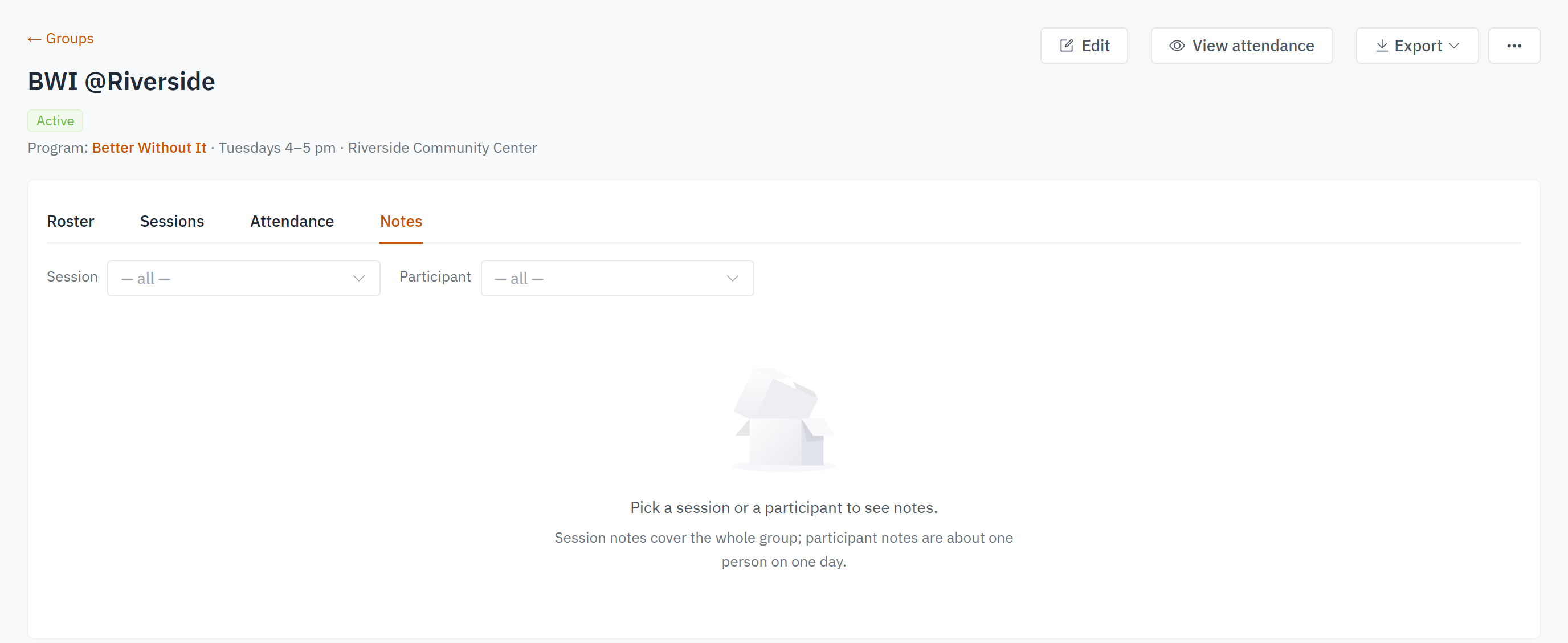
The tab starts out empty, with two dropdowns at the top: Session and Participant. What you pick decides what you see.
- Pick a Session to see that meeting: its session note, plus a row for everyone who was there. Use this right after a meeting. → Notes for a session
- Pick a Participant to see that person: a row for every meeting while they were enrolled. Use this when you want to know how someone is doing. → Notes for a participant
Pick both and you get one note — one person, one meeting. That's what the shortcuts do.
Until you pick something, the tab says Pick a session or a participant to see notes. Nothing is wrong and nothing is still loading. It's waiting for you to say what to show.
You can still write a session note from the Sessions tab
Open the ⋯ menu on a session and choose Add notes, or select Add note in the Session note column. It's the same note the Notes tab shows. See Sessions and attendance.
→ Next: Notes for a session